
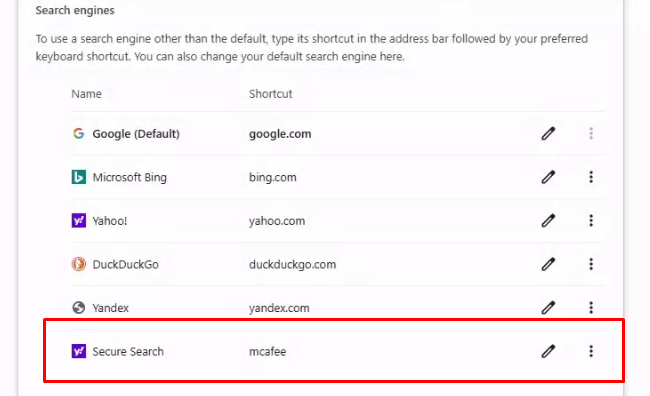
We have encountered several instances of a Chrome browser hijacker on computers in the last couple of weeks. I am asking you to check your Chrome browsers, especially if you have noted “weirdness,” re-directed searches, or pop-ups.
There are two places browser hijackers can appear. This demonstration is specific to Chrome, but any browser (Firefox, Edge, Opera, Safari) are potential victims.
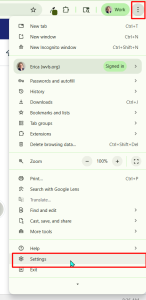
To check your browser, open Chrome and click on the three dots in the upper right corner and select “Settings.”
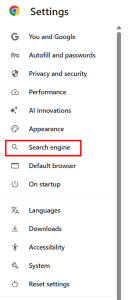
In the lefthand menu, select “Search Engine.”
Click on “manage search engines and site search.”

Look to see if the default search engine has been changed to something odd, non-standard. In this example it is called “Search Pro,” but every example I have seen is a different name. The ones I have seen have been marked as “Yahoo” search, but with an odd name.
Click on the vertical three dots next to the search engine you want to be default and set it as default. Now you can click on the three dots next to the unwanted browser hijacker and remove it.
The next step is to clear your browsing history. Recommended is to delete browsing data “for all time.” You likely will need to sign into website again, but this is the best way to make sure the hijacker can’t regenerate.
Additionally, you can check Chrome Extensions and look for anything that doesn’t look like you chose to install it. They may have some very nice names (“Safe browsing helper”), but are actually malicious. See the blog post, Remove Browser Extensions, for details.