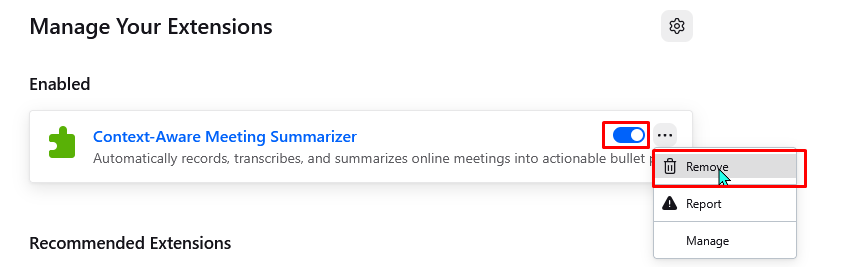
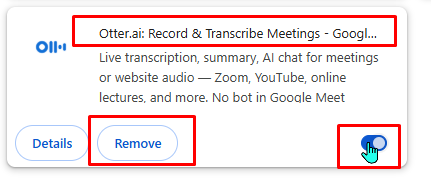
Browser extensions – especially in Google Chrome – can be problematic. They can be a source of browser hijacking can share user information (agreed to in terms of agreement) that a general user is often unaware of. The steps for reviewing and removing extensions in Chrome, Edge, and Firefox and are detailed below.
Disclaimer – the use of specific extension examples on this page is for demonstration only and does not imply these specific extensions are either problematic or safe.
Chrome Browser Extensions
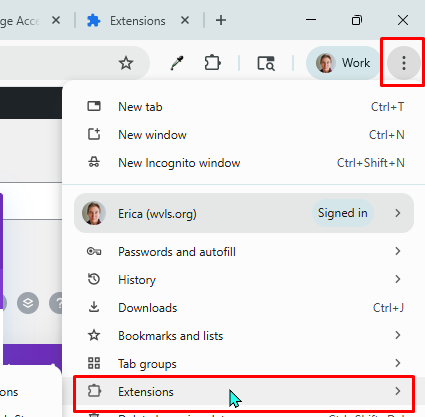
To check your Chrome browser extensions, open Chrome and click on the three dots in the upper right corner and select “Extensions.”
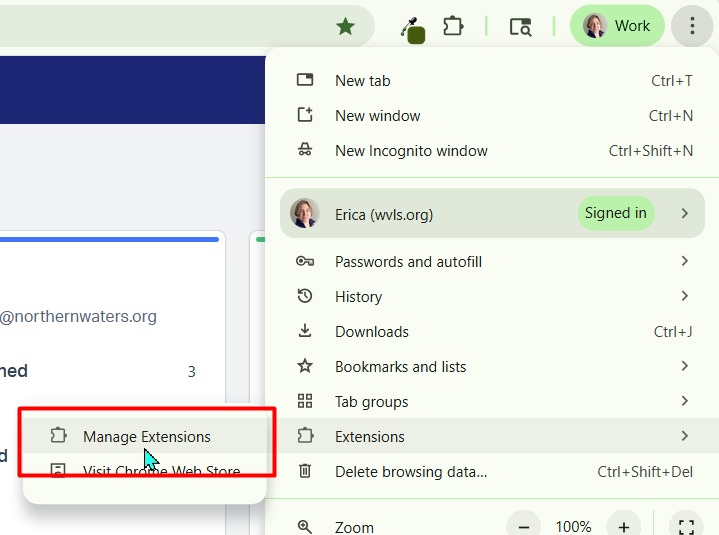
Next select “Manage Extensions” and look for anything that doesn’t look like you chose to install it.
If you see an extension you do not want, you can either disable it by toggling the slider to gray, or you can simply remove it.
Edge Browser Extensions
To check your Edge browser extensions, open Edge and click on the three dots in the upper right corner and select “Extensions,” then “Manage Extensions.”
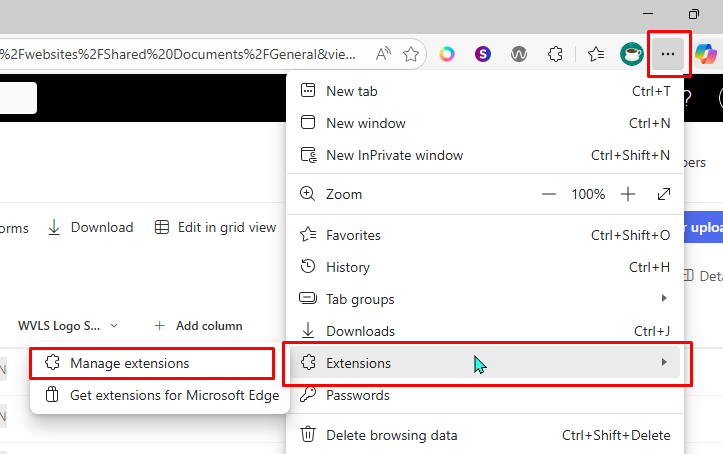
Look for anything that doesn’t look like you chose to install. If you see an extension you do not want, you can either disable it by toggling the slider to gray, or you can simply remove it.

Firefox Browser Extensions
To check your Firefox browser extensions, open Firefox and click on the three line hamburger menu in the upper right corner and select “Extensions and Themes.
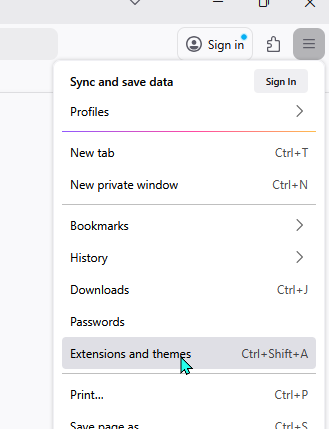
In the next screen, select “Extensions” on the lefthand side.
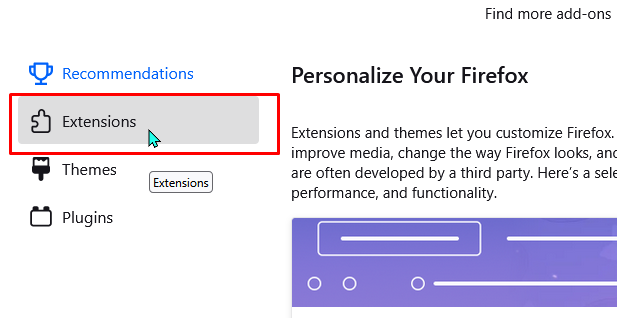
Look for anything that doesn’t look like you chose to install. If you see an extension you do not want, you can either disable it by toggling the slider to gray, or you can simply remove it.